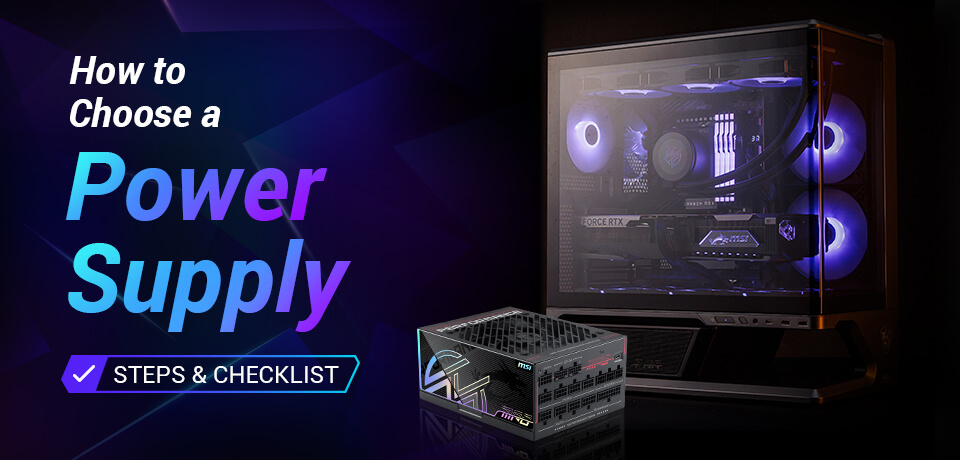
How to Choose a Power Supply for Your PC: Steps & Checklist
Case & Components
Select a power supply unit (PSU) by matching the wattage and connectors that it offers with your target PC build. So you will start the process of choosing a unit by feeding your exact CPU, GPU, and peripheral details into an online PSU calculator. You will verify this again later. Knowing this wattage figure is a good start but not enough to make the optimum choice. Other factors you should consider before purchasing a power supply are secondary features such as its efficiency rating, cable design and modularity, noise, electrical protections, and manufacturer warranties. It is also smart to 'future-proof' your decision by considering future PC plans and potential upgrades.
This article picks up from where our What is a PSU: Beginner's Guide to PC Power Supplies left off, setting the foundations. We recommend checking that first to get up to speed with all the PSU and power cabling terminology and features.
Step 1: How Much Wattage Does Your System Actually Need?
Start your PSU selection process by tallying your CPU and GPU peak power requirements, according to your intended workloads. It is also wise to consider any potential upgrades you might wish for in the next few years. We recommend you use official component guidance figures from the manufacturer(s) to find the appropriate figures. However, if your parts list is not final, a great first step is to visit MSI’s Lucky the Dragon AI-powered EZ PC Builder site and consult with our friendly chatbot.
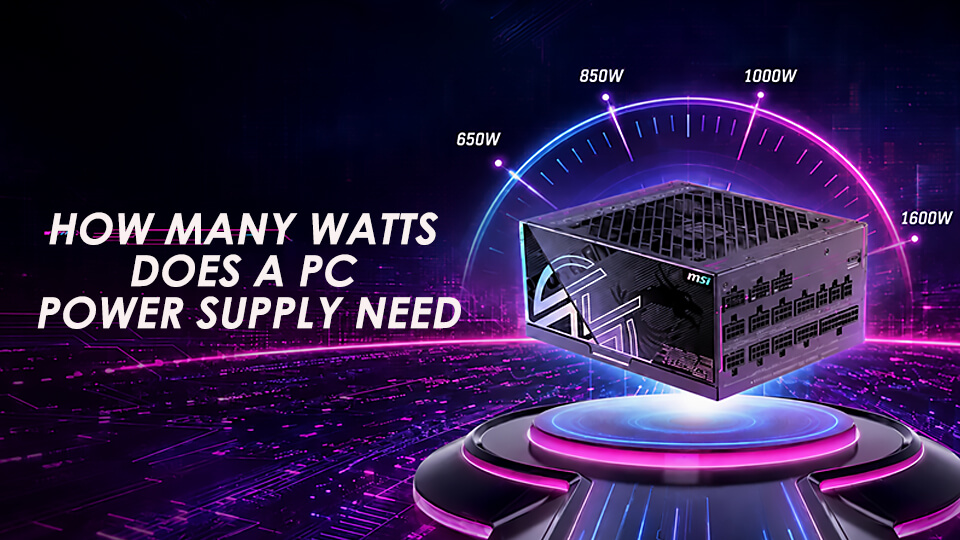
The build scenario chart below should help you know whether your calculated wattage figure is in the right ballpark, but don’t use it for determining a PSU wattage for your system without any further refinement.
Build scenario
Official MSI table example
PSU guidance to present
Entry or mainstream gaming
GeForce RTX 5070, Standard Gaming, with the CPU families listed in the table
650W or 750W reference point
Higher-performance gaming
GeForce RTX 5070 Ti or RTX 5080, Standard Gaming
750W or 850W reference point, depending on the GPU
Flagship gaming
GeForce RTX 5090, Standard Gaming
1,000W reference point
Overclocked, AI, or HEDT build
Recommend (OC) rows with higher-tier CPUs or AI/HEDT platforms
Follow the exact CPU/GPU pairing; the table ranges up to 1,600W
Once you have the total figure derived from your research, or the EZ PC Builder, it is a good idea to verify your result in the MSI Power Supply Calculator and Recommended PSU Table.
Step 2: Does Your GPU Require a Specific Connector?
Now it is time to check all your component power cable / connector requirements. You can learn more about all of the PSU connectors commonly found today, in our previous article. You should match each connector type / quantity to meet or exceed your current system requirements.
If you are buying a PSU for a system that is going to be fitted with a powerful modern graphics card (GPU) first check the GPU manufacturer for the required power connector(s) and recommended PSU wattage. An ATX 3.1 PSU with PCIe 5.1 and a native 12V-2x6 connector can simplify installation for compatible GPUs, but it is not required for every graphics card. Match the PSU to the connector type and quantity specified for your exact GPU model, and allow for any planned upgrades.
For graphics card model-specific guidance, see our guides to choosing a PSU for the NVIDIA GeForce RTX 5090 and AMD Radeon RX 9070 XT.
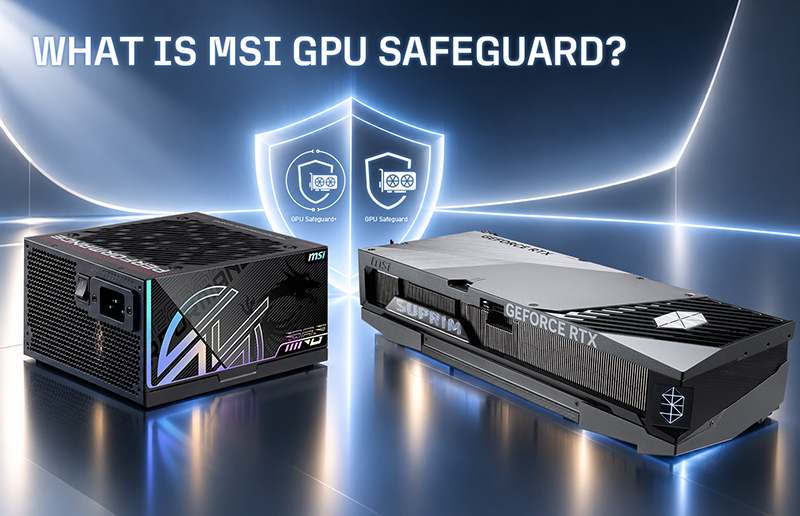
As there are safety implications, we also want to highlight our solutions for verifying power cable connection integrity. MSI’s dual-color connectors provide a clear visual indicator to help PC builders and DIYers check whether the cable is fully seated. Some MSI MAG and MPG PSUs with GPU Safeguard/+ bolster this safety feature with audible warnings if anomalies are detected. The beep alerts are followed by a 3-minute system shutdown timer, giving the user ample opportunity to save work, close down, and then examine and reseat the power connector.
Step 3: Which PSU Features Matter After Wattage and Connectors?
There’s a group of PSU features still to consider, but they are mostly yes/no, more-is-better style decisions. Specifically, these concern efficiency, modularity, noise, protection, and warranty.
Efficiency affects how much input power is lost as heat at a comparable load. Compare the efficiency rating listed for the exact PSU models you are considering alongside their price and the workload you expect. Noise is a separate consideration. Check the product page for the model’s fan design, fan mode, and any available acoustic information.
Modular PSUs are also desirable over semi-modular or non-modular (captive cable) units but are generally more costly. They feature modular cables, so you only plug those that you need into your PSU, making for a cleaner PC build with improved airflow. If cable flexibility is not a priority, a semi-modular or non-modular PSU can still be a practical option when you want to prioritize wattage and connector compatibility within your budget.
Nearly every PSU available will feature at least five crucial protections from electrical hazards like OCP (Over-Current Protection) and OTP (Over‑Temperature Protection). But more is better (safer). Please read our basic PSU protections guide, and make sure your new unit covers OVP, OCP, OPP, OTP, and SCP – at the very least.
Finally, check your chosen PSU product page carefully for any extra features, or omissions, in light of the above guidance.
Which PSU Fits Your Build Scenario?
Now we are going to put the three steps outlined above into practice. We’ve assembled a table with four MSI-made PSUs showing how they would fit into four distinct build scenarios.
Product
Build scenario
Key features
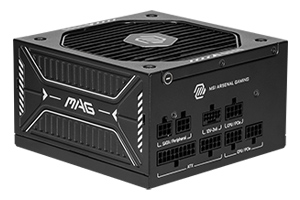
Budget gaming
A 750W modular PSU with dual-color 12V-2x6 connectors, 80 Plus Gold efficiency, and 7 year warranty
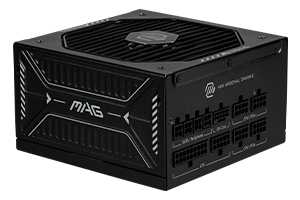
Mainstream gaming
An 850W modular PSU with dual-color 12V-2x6 connectors, 80 Plus Gold efficiency, and 7 year warranty
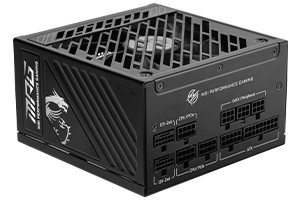
High-power gaming, creator or AI
A 1,250W modular PSU with two dual-color 12V-2x6 connectors, 80 Plus Gold efficiency, and 10 year warranty
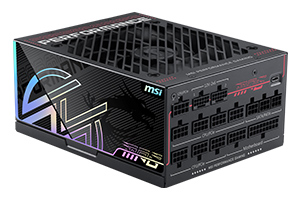
Very high-power workstation or AI
A 1,600W modular low-noise and fully-digital PSU with two dual-color 12V-2x6 connectors, 80 Plus Titanium efficiency, GPU Safeguard+, and 12 year warranty
Conclusion: PSU Compatibility Checklist Before You Buy
Remember there are three main specification categories to consider before you buy a new PSU. You must assess your total PC component peak power draw in watts (W), with the CPU and GPU being the most energy hungry components to tally.
Secondly, make sure the PSUs on your short list have all the connectors you need. Again it doesn’t hurt to have some spare, for future PC upgrades and expansions.
To wrap up, there’s the multiple-choice section of your decision tree involving features like efficiency, modularity, form factor/size, noise, protections, and manufacturer warranty. This process should help you narrow down your PSU options based on your budget.
"Measure twice, cut once" is a carpenter's adage that applies to many other trades, like PC DIY. So, to verify your result, please at least check your shortlist against the MSI Power Supply Calculator and Recommended PSU Table. It will be worthwhile for many to also consult our PC Building Guide and Build for Glory features, to plan your next PC build.
Before You Buy: PSU Selection Checklist
- Confirm the wattage for the exact CPU, GPU, workload, and upgrade plan.
- Confirm motherboard, CPU, GPU, storage, and accessory connector requirements.
- Confirm whether ATX 3.1, PCIe 5.1, and native 12V-2x6 support is needed.
- Compare efficiency, modularity, noise, protection features, warranty, and budget.
- Confirm PSU form factor and the case's maximum supported PSU length.
- Run your complete configuration through the MSI Power Supply Calculator.
FAQ
How much headroom should I add when choosing the PSU wattage?
There is no universal percentage you can add to the determined wattage for every kind of PC build. Given your actual CPU and GPU power consumption limits, it is wise to add headroom for planned upgrades, overclocking, sustained high-power workloads, and current manufacturer guidance. Validate your full PC configuration with our PSU Calculator.
Can I use a 1,000W PSU for a system that only needs 600W?
Yes. A PSU does not force your PC to use its full rated wattage, so a 1,000W model can safely power a system whose verified requirement is 600W, for example. Choose the capacity based on your complete component list, expected workloads, and defined upgrade plan rather than a universal efficiency sweet spot.
On the flip side, too much extra wattage can raise PSU costs without adding useful value. Validate the complete configuration with our PSU Calculator, which takes these finer points into consideration.
Is a fully modular PSU worth the extra cost?
Modularity offers real benefits such as easier cable routing, a cleaner build, potentially better airflow, and installation flexibility. It is not required for electrical compatibility or performance, so a suitable semi-modular or non-modular model can still be practical for a budget-focused build.