






DigiME:
A Digital You
Experience Live Avatars and AI Assistant MIA
Try it Now

*Available on PC only.
About DigiME


Meet the First AI-Powered Streaming and Motion Capture Software
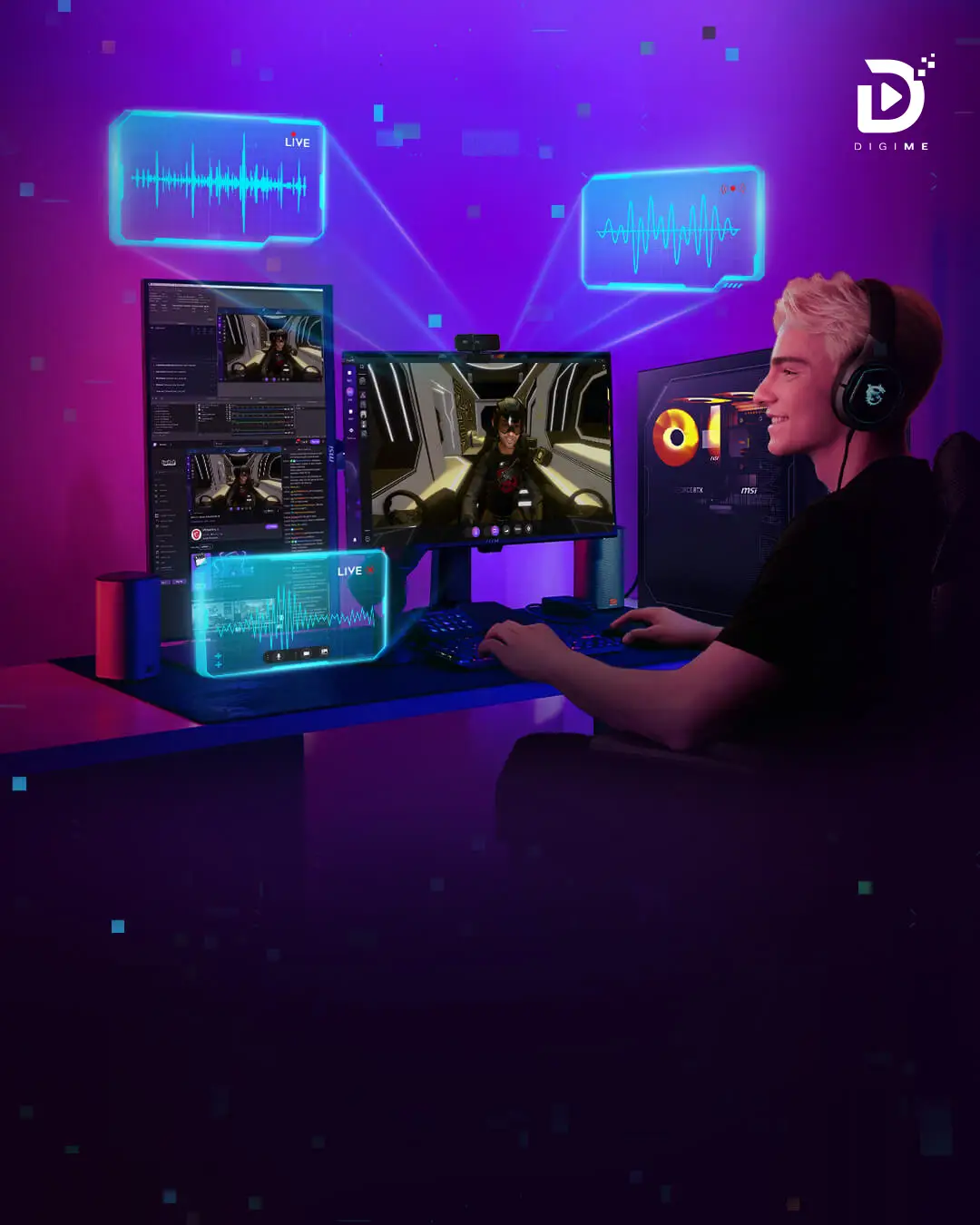
DigiME, co-developed by MSI and Red Pill Lab, is an AI-powered livestreaming software that transforms online interactions through real-time avatar creation. Leveraging Red Pill Lab’s expertise in AI facial and motion capture and integrated with MSI’s AI products, DigiME delivers an immersive experience without expensive gear. It is optimized for NVIDIA RTX ray tracing and Intel® NPU AI accelerator with Intel OpenVINO™ — enhancing performance and reducing GPU load.
What’s New
Immersive Avatar Settings
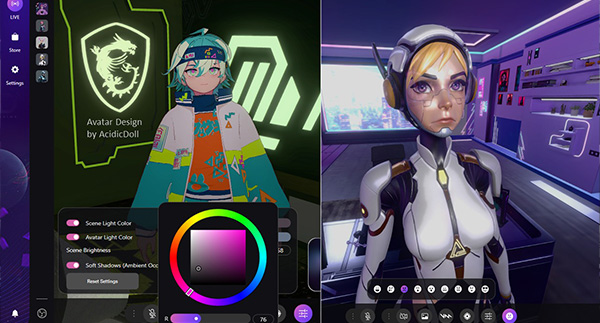
Lighting Settings & Facial Expressions
Freely customize lighting and smoothly switch facial expressions in real time.
Play Voicemod
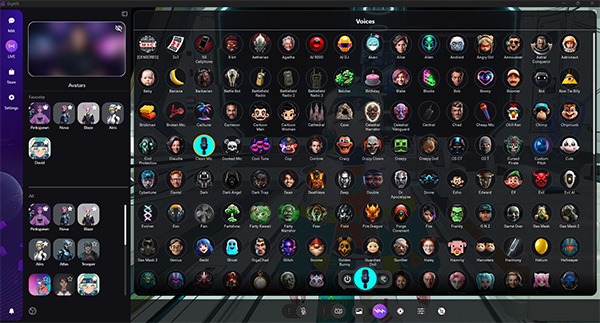
Transform Your Voice
Instantly
Voicemod delivers real-time, AI-powered voice transformation, letting users personalize and fine-tune a variety of voice effects. On the new DigiME platform, you can explore a wide range of unique voices, making your livestreams more dynamic and engaging while unlocking a whole new level of creativity and fun.
MEET MIA
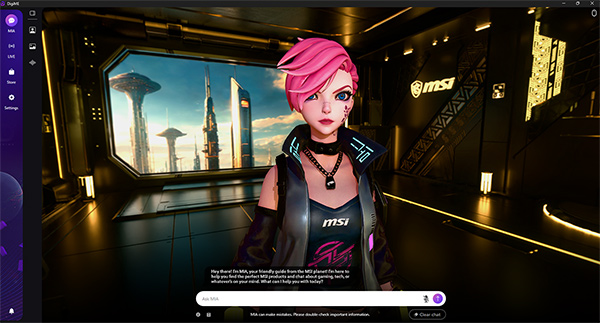
Your AI-Powered
Virtual Voice Assistant
MIA (MSI Intelligence Assistance) transforms digital interactions with smarter, more intuitive support. Acting as a digital expert, MIA combines professional tech knowledge, industry insights, and product expertise to help users quickly find MSI hardware that best fits their needs. With advanced AI Agent integration, MIA understands user intent, responds in natural, human-like tones, and provides instant guidance — making every interaction seamless, efficient, and engaging.
FEATURES

Effortless AI Motion Capture
Experience the future of seamless motion capture with DigiME's 2D-to-3D AI Body Tracking technology. It eliminates the need for wearables and expensive mocap gear, allowing you to use a standard webcam to control your virtual avatar. Benefit from the power of advanced AI models and fluid facial capture, fully integrated with your camera and microphone.
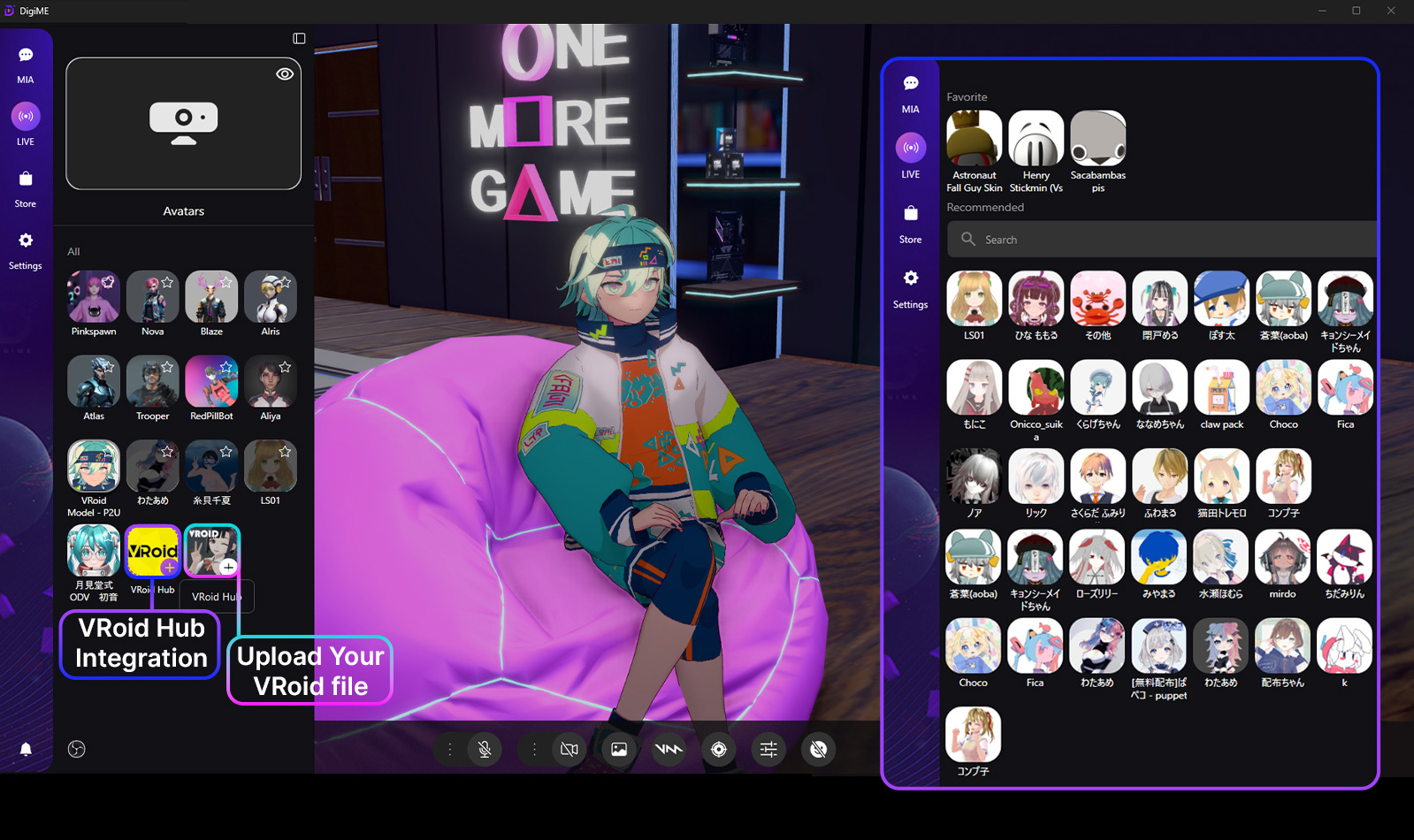
Vroid Hub Integration
VRoid Hub integration is now available on DigiME! Users can quickly log in and load their favorite VRoid characters. You can also upload VRoid files from your computer.
*VRoid Hub integration is currently under review and will be available soon.
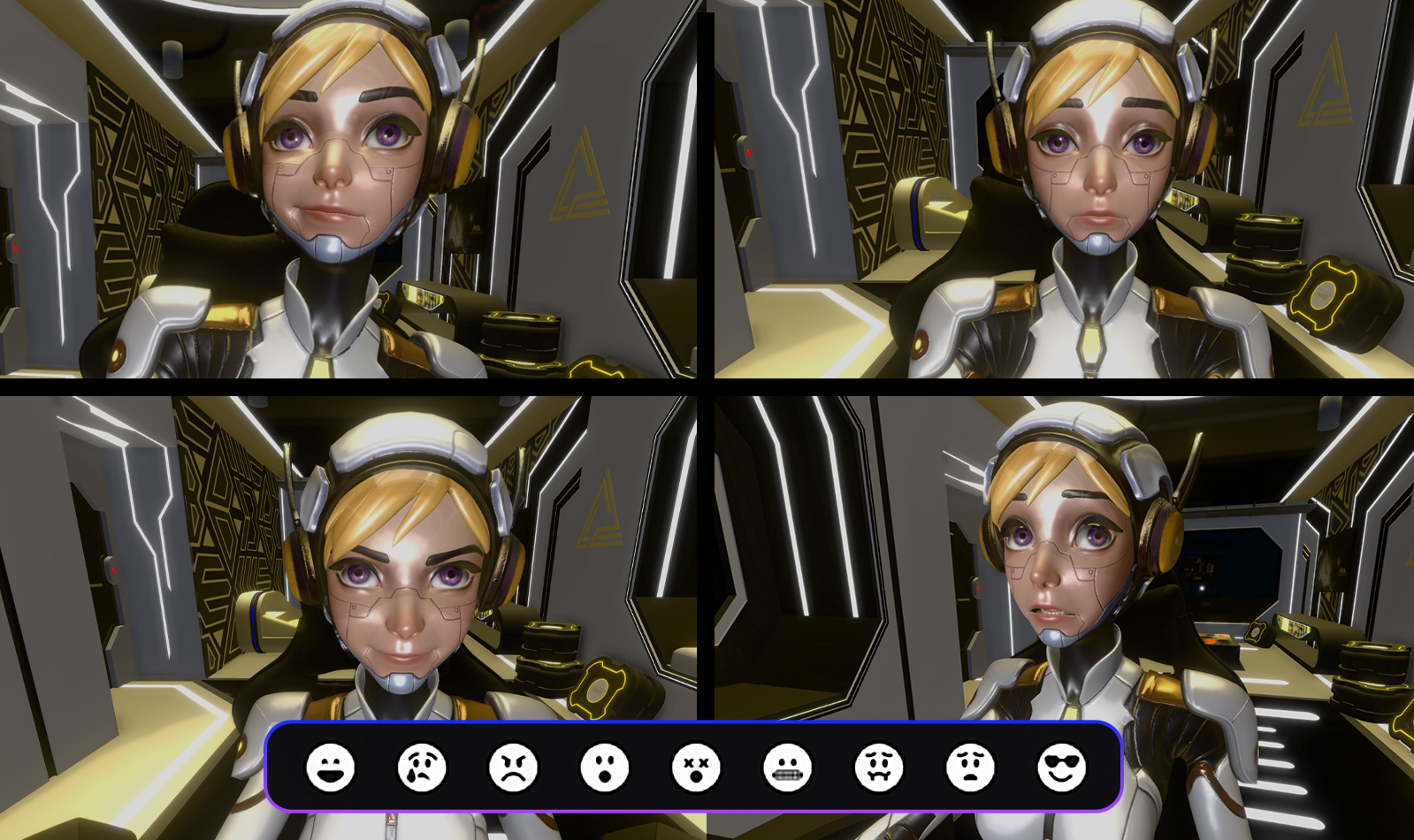
Facial Expressions
Quickly access 9 preset facial expressions through interface, and customize hotkeys from settings for smoother control and a more engaging streaming experience.
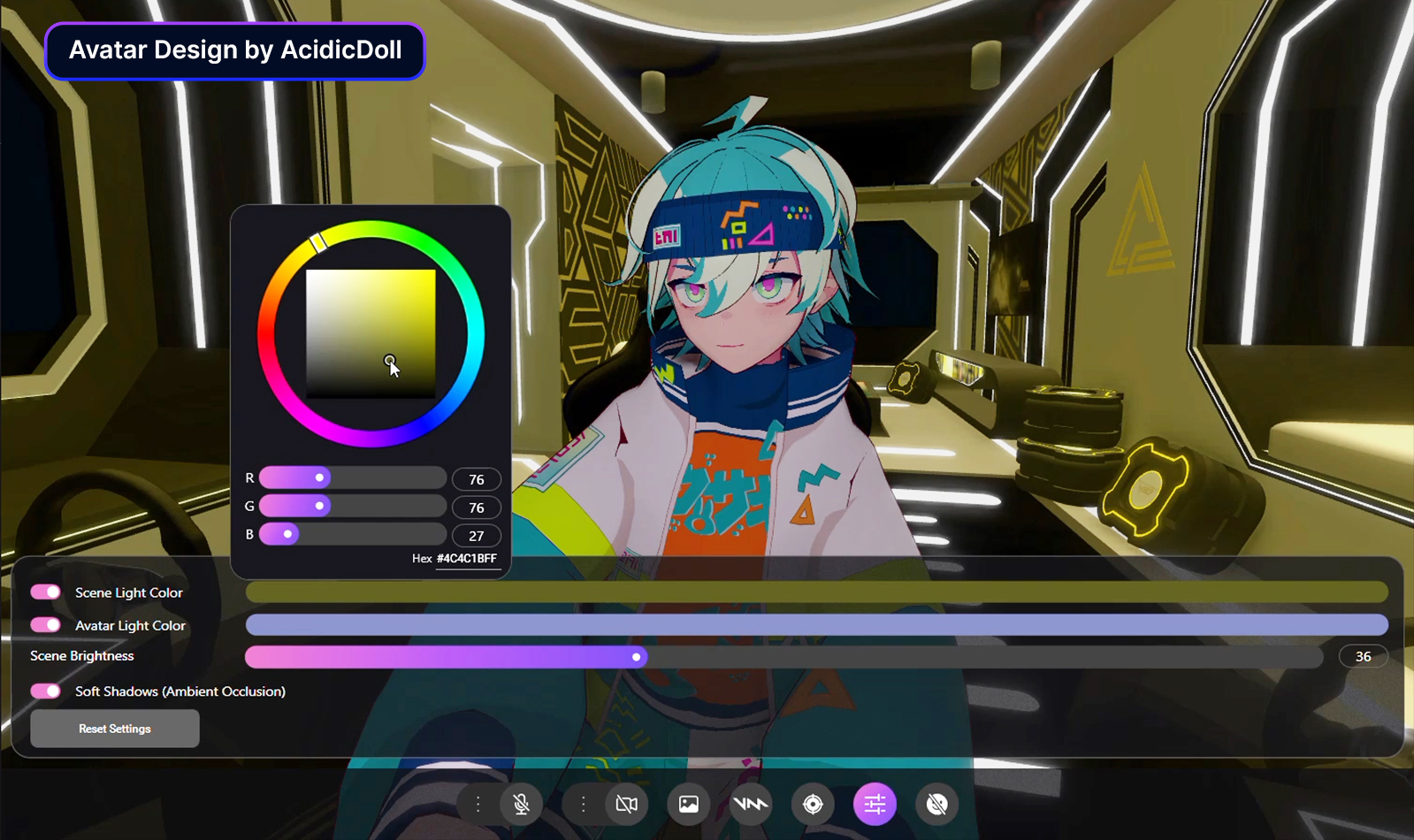
Lightning Settings
DigiME Lighting Settings let you freely customize environment and character lighting. Your latest setup is automatically saved.

Real-Time Voice Changer
With DigiME & Voicemod, transform your avatar’s voice instantly during livestreams—switch tones, express emotions, and engage your audience with just one click.
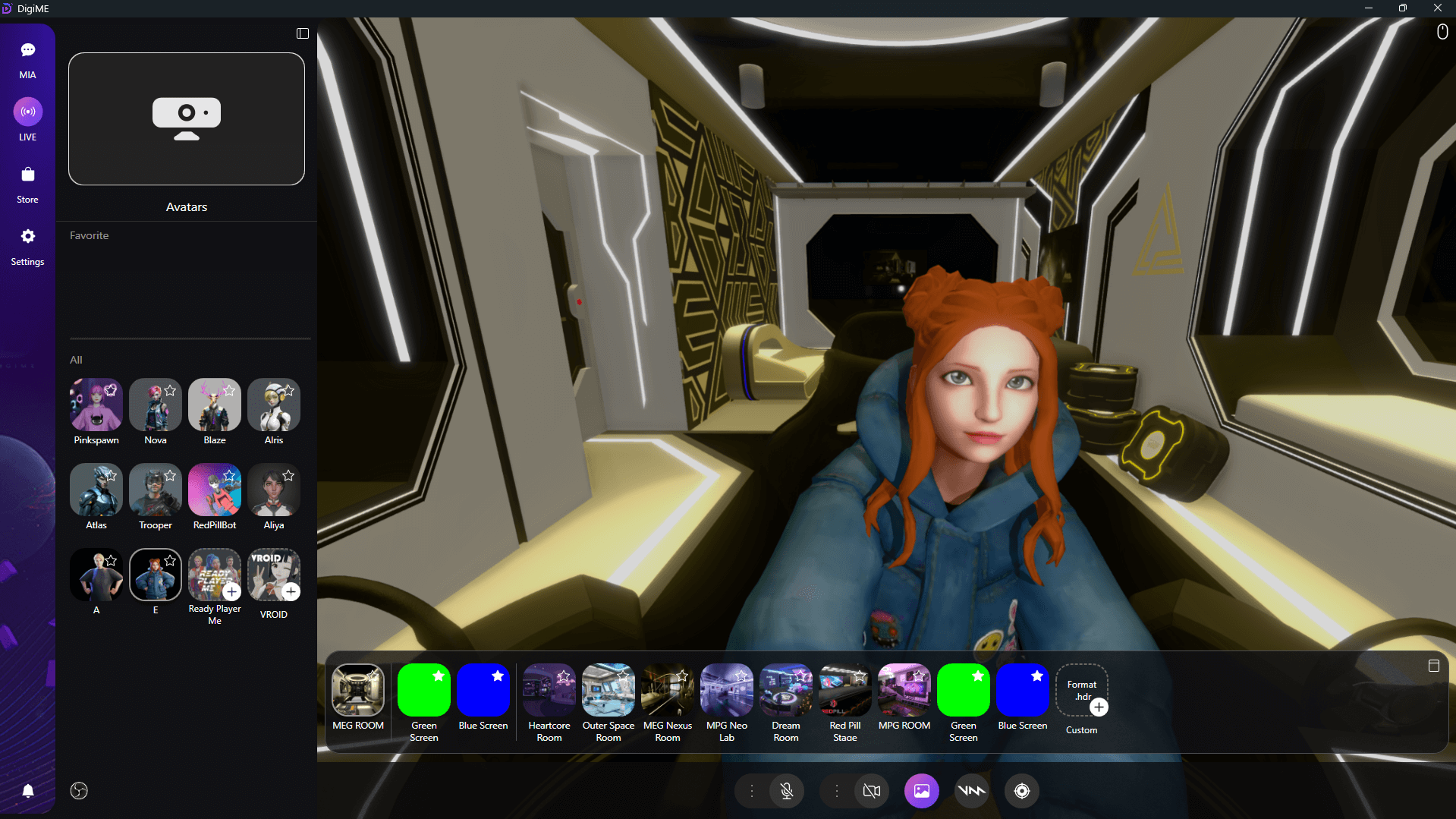
Customize Your Assets
With DigiME, upload your VRM avatar or any 3D scene to create a personalized virtual space. Make your livestreams more unique, fun, and engaging.
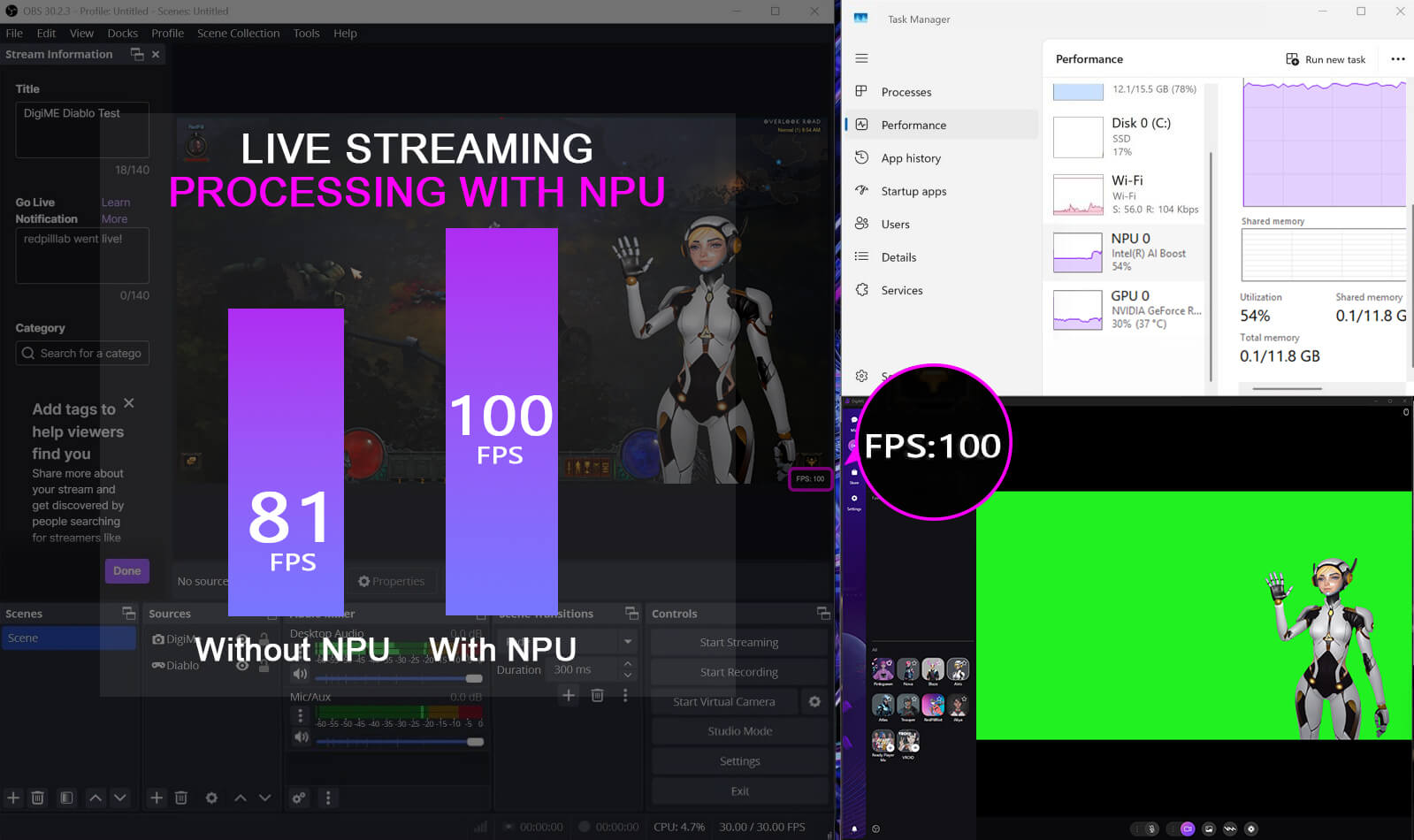
Seamless AI Computing
DigiME supports NVIDIA RTX GPU acceleration and the Intel NPU AI acceleration with OpenVINO that doubles your virtual twin's FPS, reduces GPU load by 75%, and maintains CPU usage at or below 20% for a smoother, more efficient streaming and gaming experience.

Personalized AI Avatars
DigiME uses Generative AI to create custom avatars for virtual interactions and enhancing audience engagement — all without any wearable devices or expensive gadgets. You can easily personalize these virtual avatars to reflect your unique identity and personality with AI-driven tools.
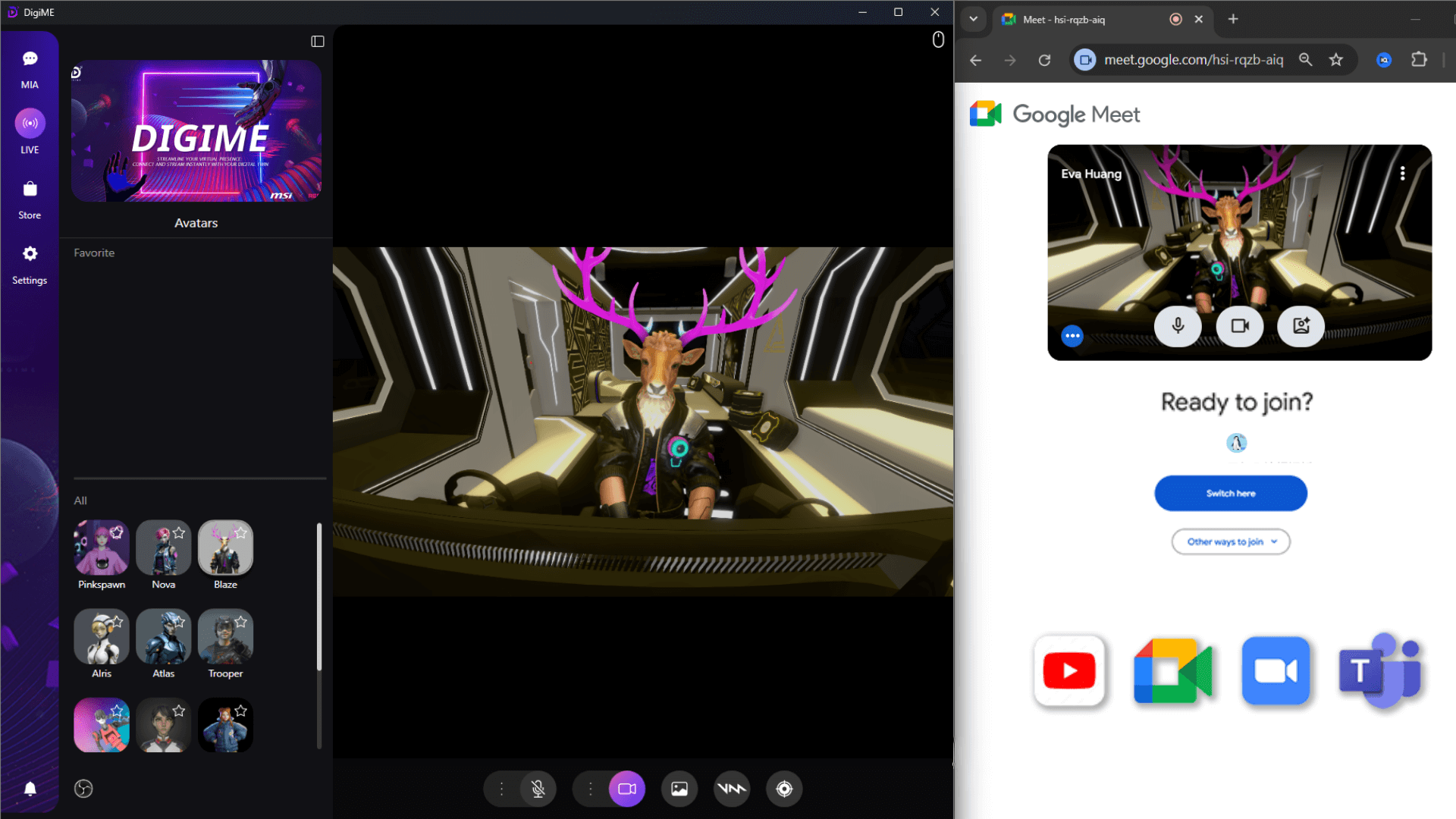
Broad Platform Compatibility
DigiME is designed to seamlessly integrate with platforms like Twitch, YouTube, Google Meet, Zoom, and Teams — allowing you to broadcast your virtual avatar with ease.
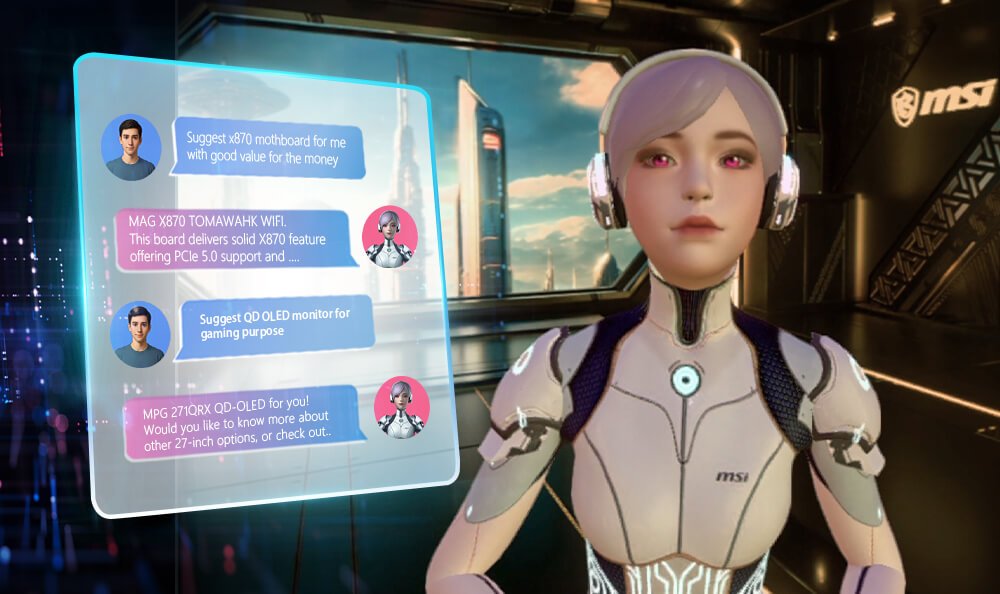
Product Expert & Tech Advisor
Delivers in-depth insights into MSI hardware with clear explanations of specifications, compatibility, and features — tailoring recommendations unique to the user in choosing the right products with the latest industry insights.
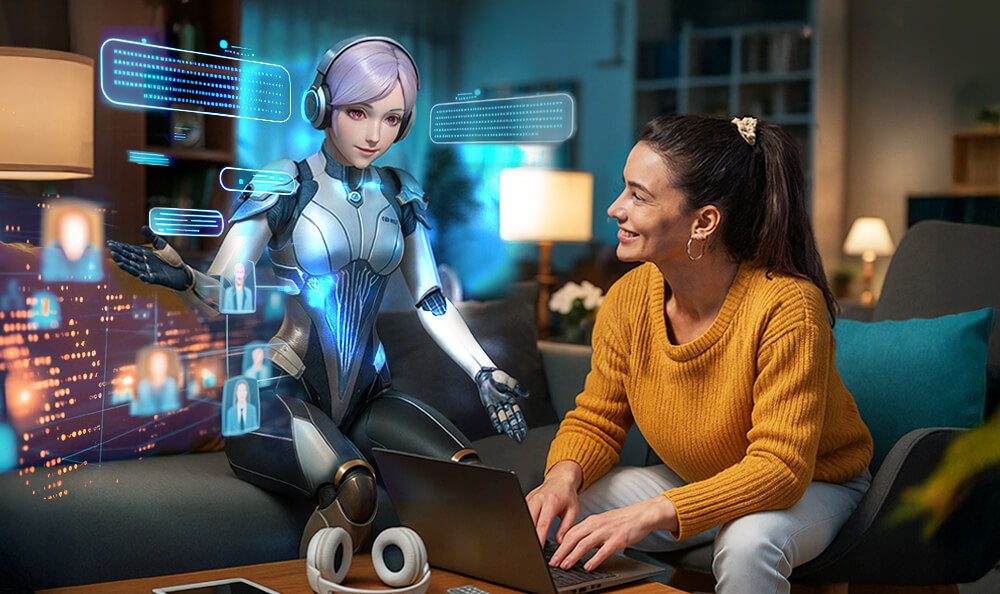
Natural, Intent-Based Interaction with Virtual Avatar
Understands user intent and responds in natural, human-like speech, enhanced through real-time interaction with a virtual avatar.
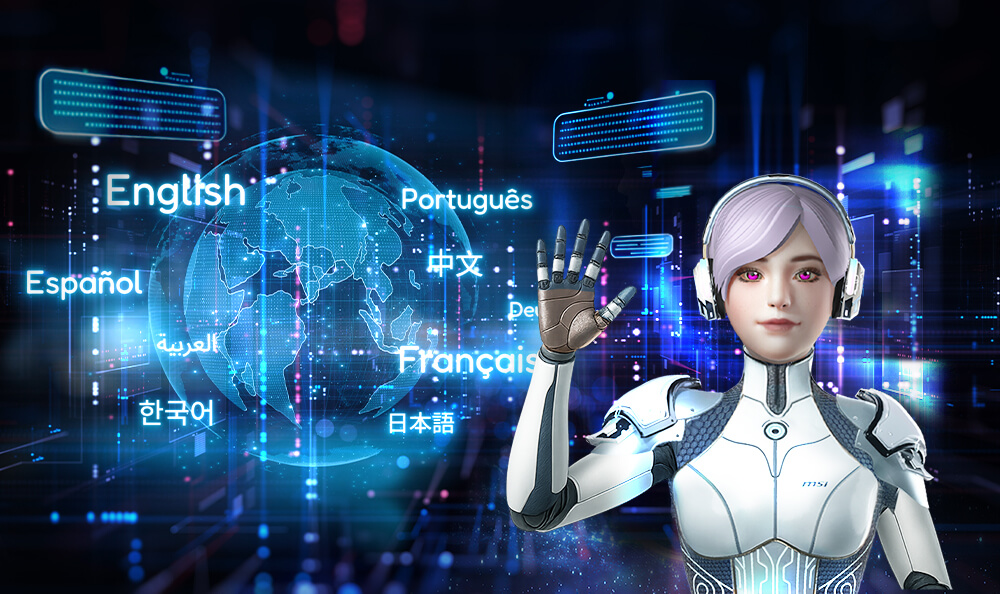
Multilingual Voice Interaction
Supports multiple languages with customizable voice options and text-to-voice conversion.


SOFTWARE GUIDANCE
Become a Vtuber with Kson.
**Ready Player Me discontinued its services on January 31, 2026, and previously created avatars remain accessible.
Go to Advanced Settings to adjust options based on your setup:
1. 3D Rendering Resolution : ”Window” fits your screen size, including vertical screens.
2. AI inference using GPU and integrated graphics.
3. Webcam field of view.
4. Always-on extended hand tracking.
5. You can click on “Help” for more detailed information.
1. Enter the Avatars settings to pick the avatar you want to use.
2. Click the background icon, then select the background you like.
3. Click the position icon, then choose the camera positioning. F11: Full Screen. Scroll the mouse wheel forward to zoom in and backward to zoom out.
1. Click the VROID icon in the Avatar area.
2. Open the .vrm file of your desired character.
3. Click the Background icon.
4. Select “Custom” and upload your .hdr file.
1. Click the Voicemod icon to open the voice-changing page.
2. Select your favorite voice effect.
3. Turn on “Toggle Hear Myself” to hear your voice after the change.
1. Click the “Lighting Settings” icon.
2. Adjust the scene/ avatar light color, as well as scene brightness.
1. Click the “VRoid Hub” icon.
2. Log in to your VRoid Hub account
3. Browse and select your favorite avatar.
4. You can also upload a VRM file from your computer.
1. Click the “Facial Expressions” icon to quickly select your preferred expression.
2. Go to "Settings" to customize hotkeys for each face expression. Enable the button “Keep Expression Active”, will stays facial expression active until pressed again.
1. Change MIA to other character and spaces.
2. Multi-Language Support and Voice Options.
3. Turn On / Off Dictation.
4. Stop Conversation.
5. Clear/Delete Messages.
6. User Experience Feedback
1. Open Windows Settings.
2. Go to "Time & language".
3. Select "Language & region".
4. Click "Add a language" from "Preferred languages".
5. Select your desired language and click "Next".
6. Check the box next to "Text-to-speech" and click "Install".
7. After installation, restart DigiME and log in to enjoy natural-sounding speech.
Try it Now
*Available on PC only.
BUILD YOUR PC, POWERED BY MSI
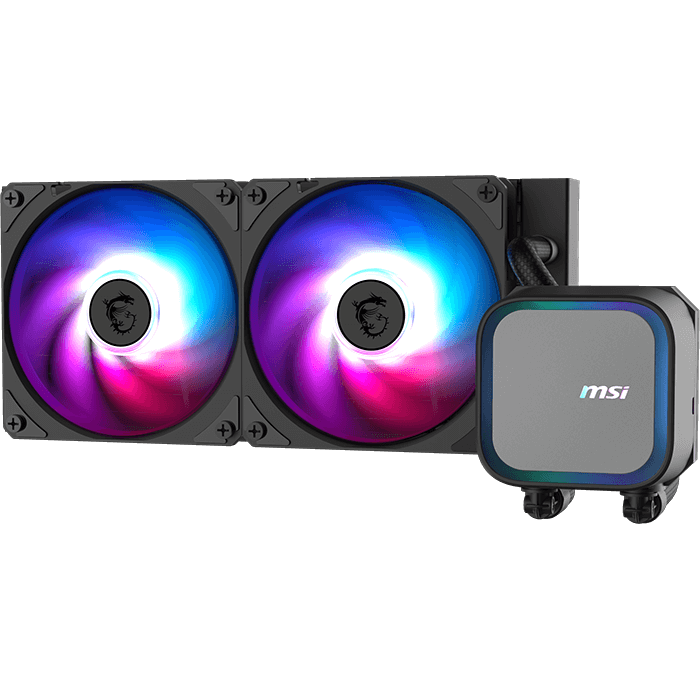
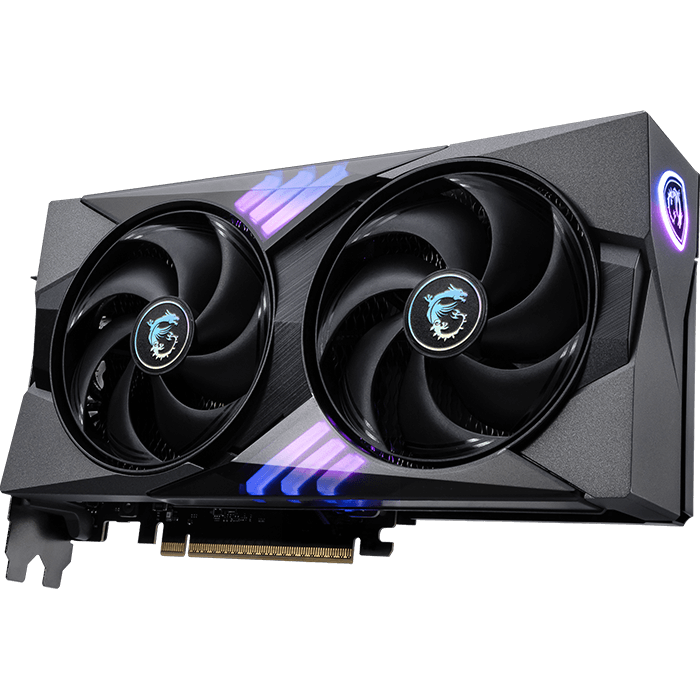
Pick, assemble, and power up with MSI PC components. Explore our curated PC builds of MEG, MPG, MAG series and more.
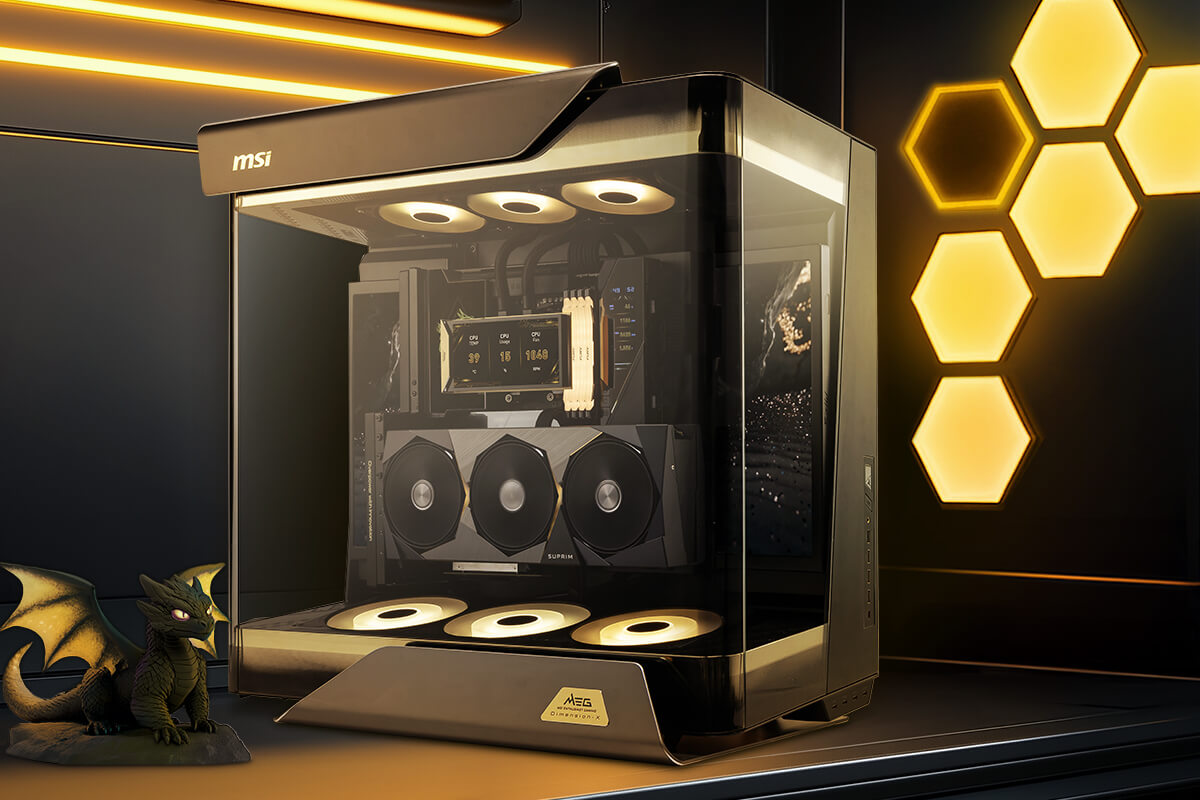
* Image(s) for reference only.
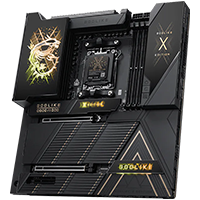
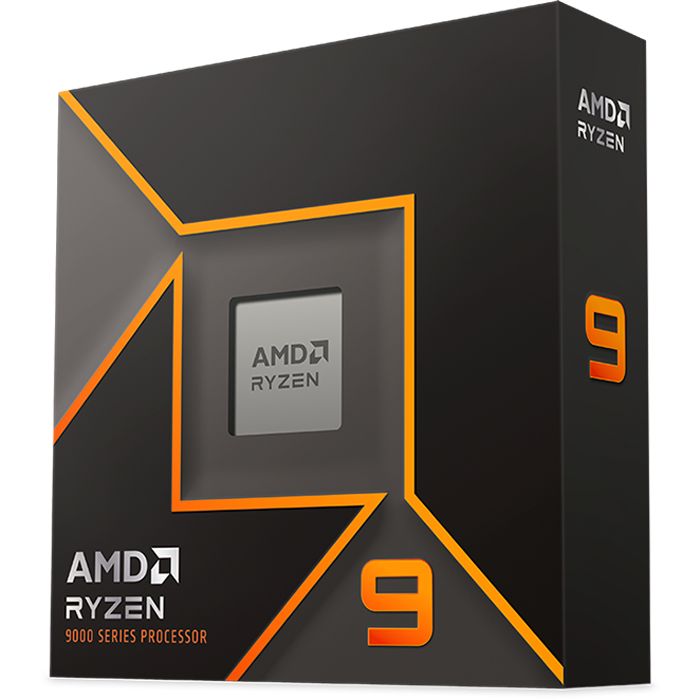
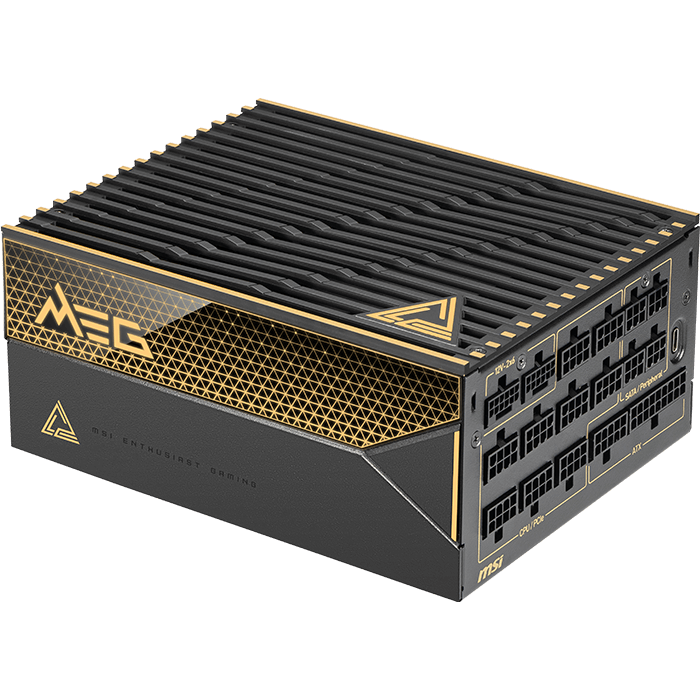
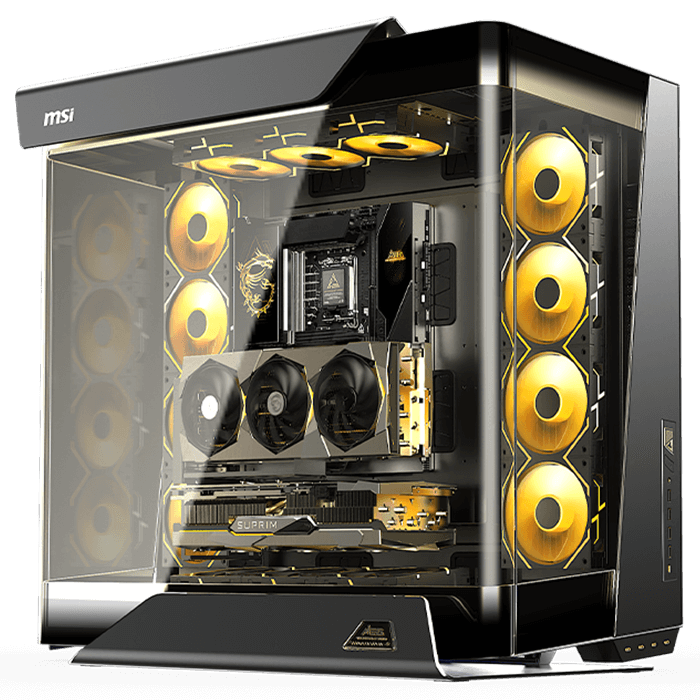
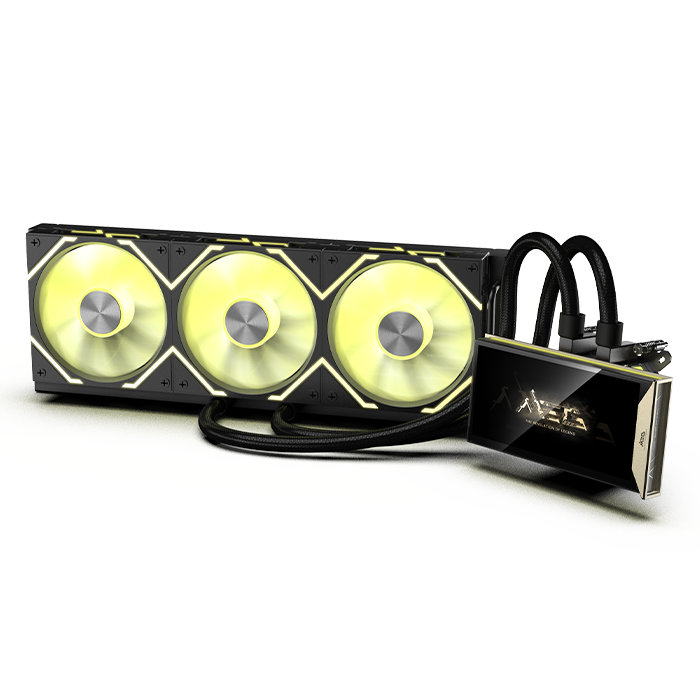
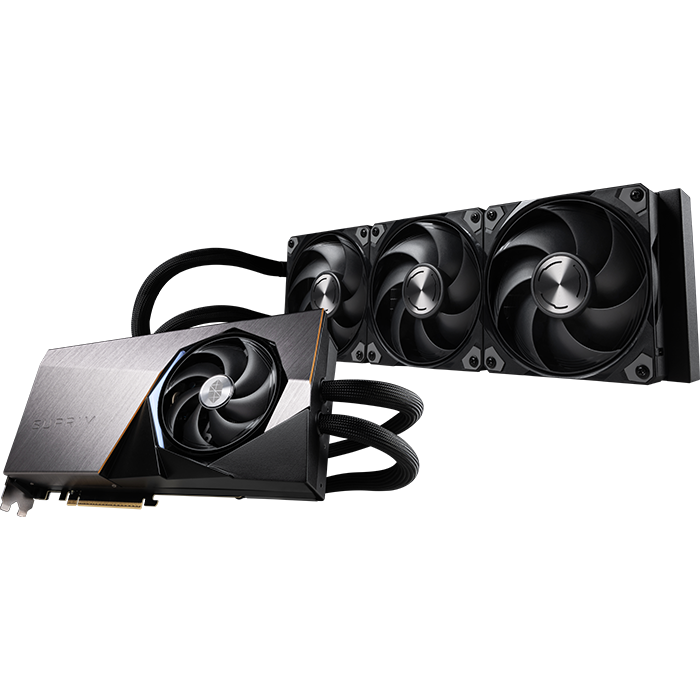
MEG PC BUILD
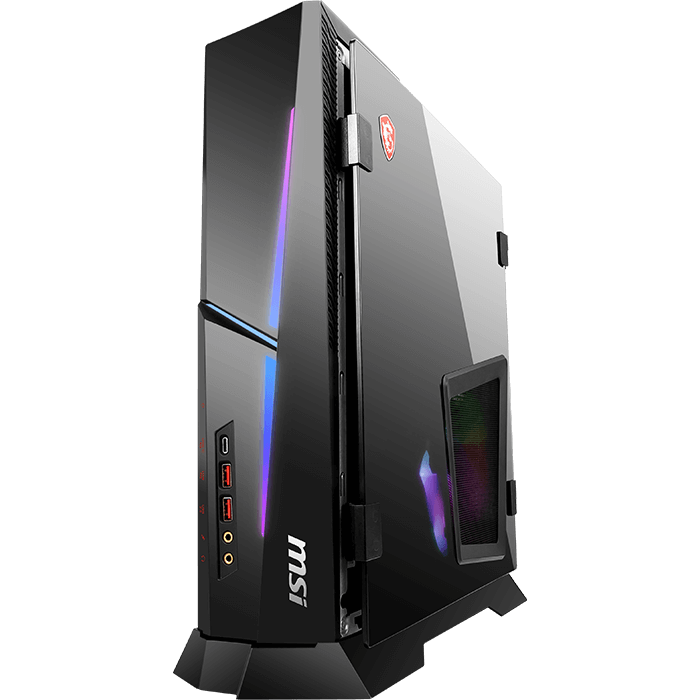
Built for those who demand cutting-edge design and ultimate performance. The MEG series is a masterpiece of innovation and power, engineered to push beyond limits and conquer the most demanding games and AI workloads.
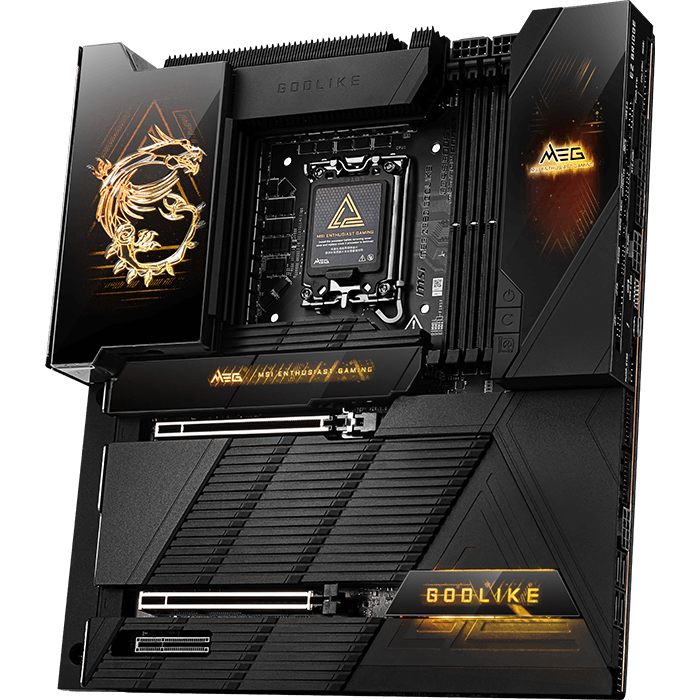

* Image(s) for reference only.
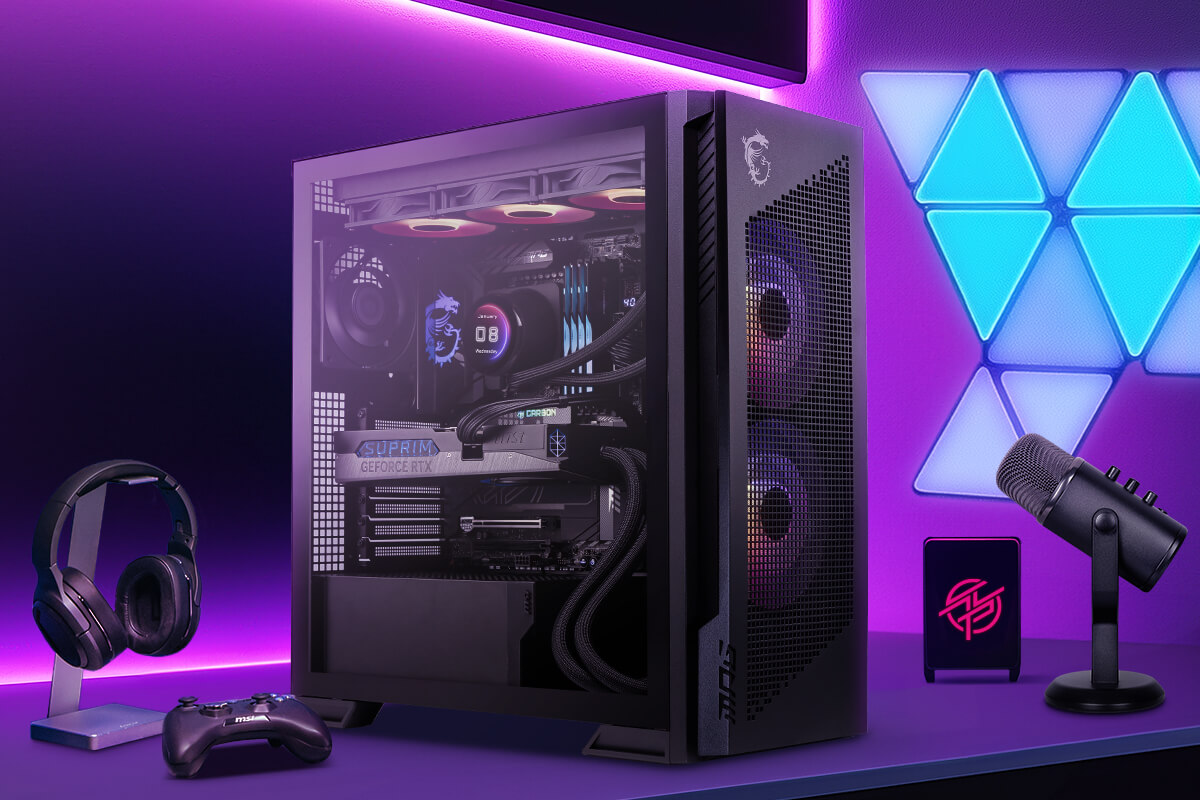
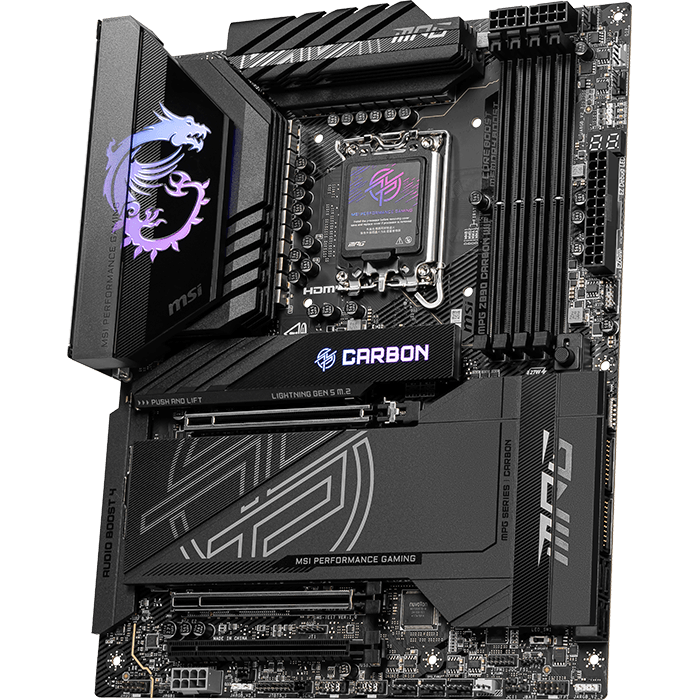
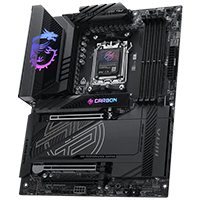
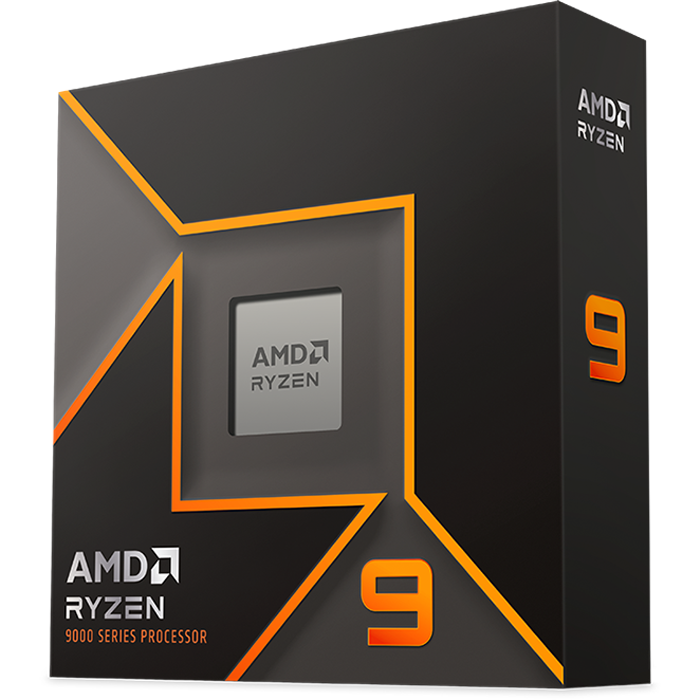
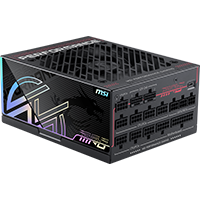
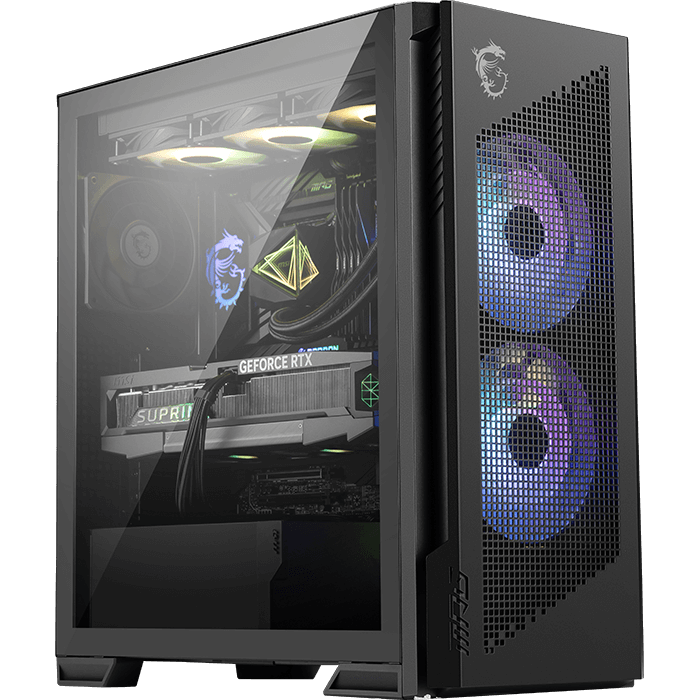
MPG PC BUILD
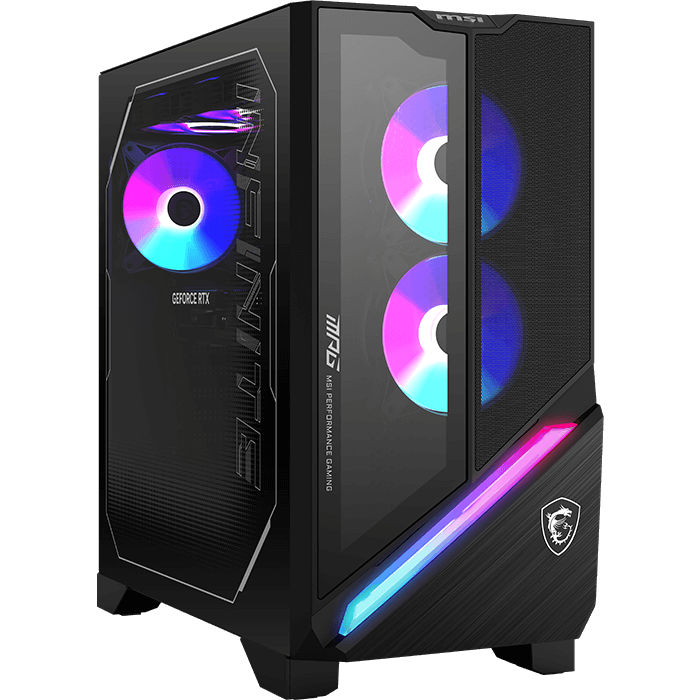
A bold fusion of performance and style. The MPG series is made for gamers who want both powerful specs and unique personality, featuring vibe lighting and sleek design. This setup looks just as fascinating as it plays.
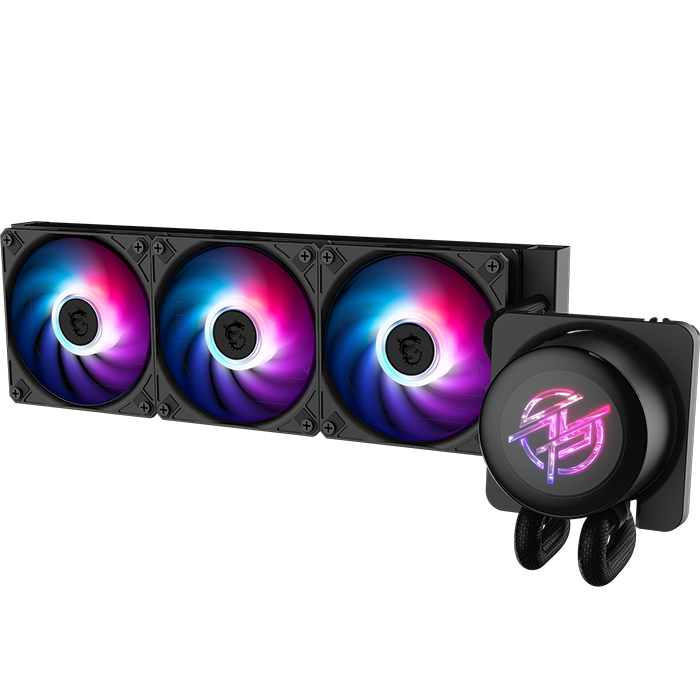
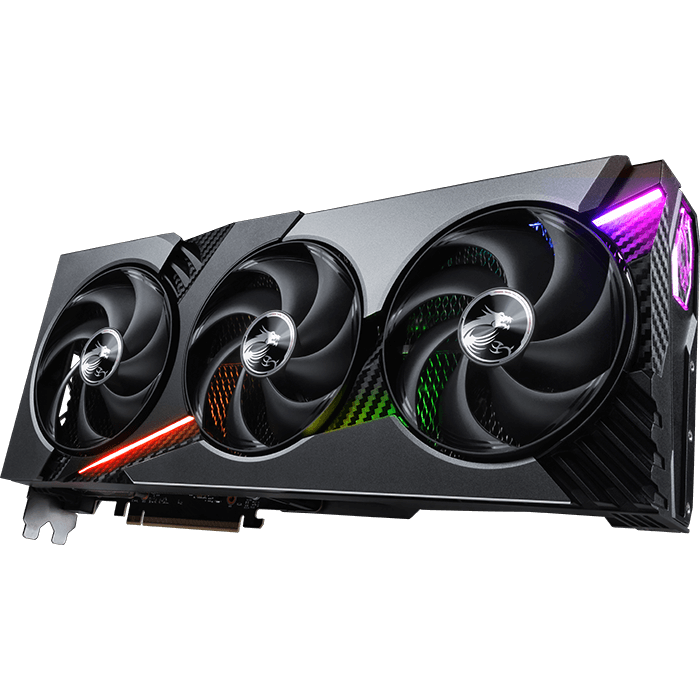
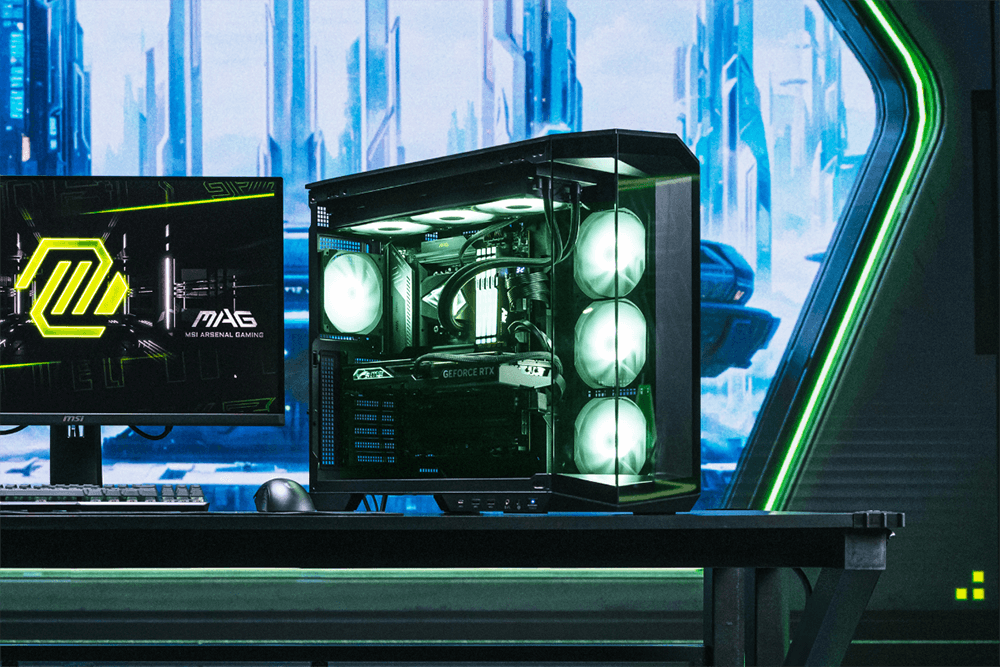
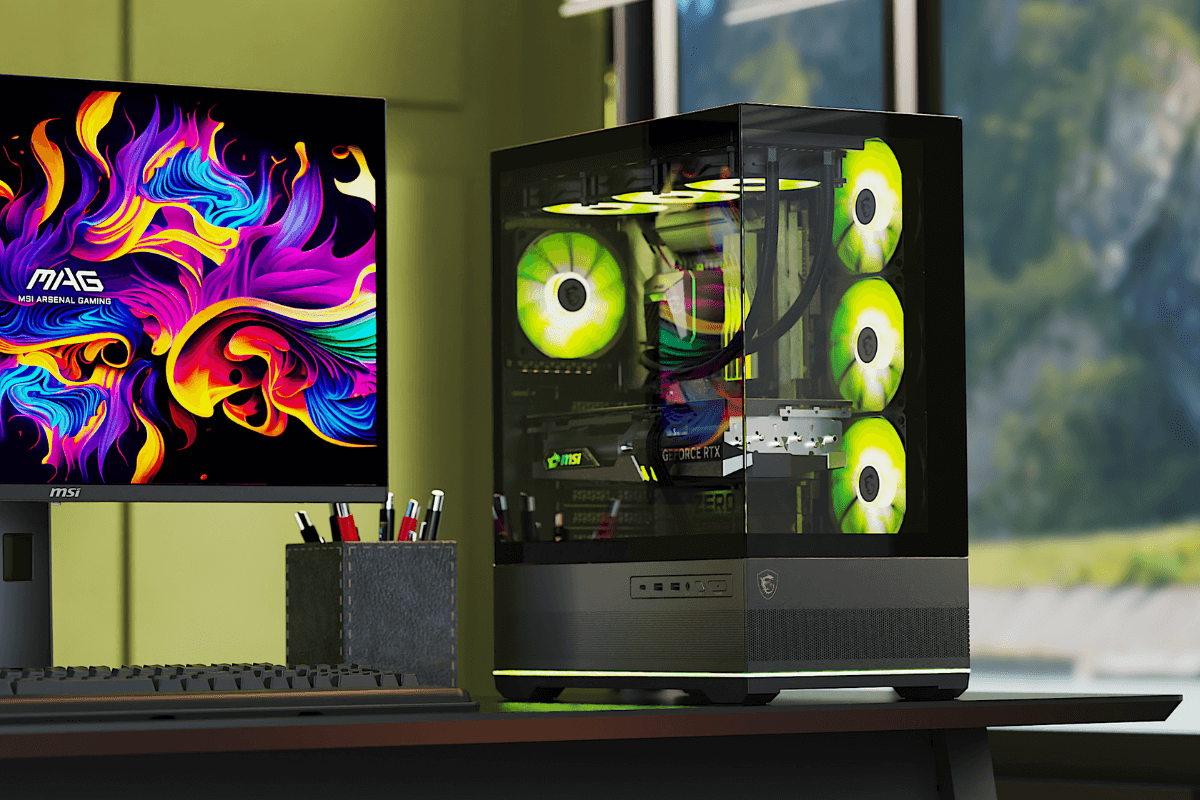
* Image(s) for reference only.
MAG PC BUILD
Crafted for stability and durability, the MAG series is your reliable companion—built to deliver solid performance through every intense gaming session.
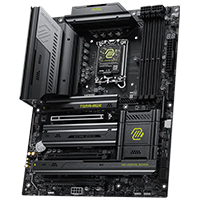
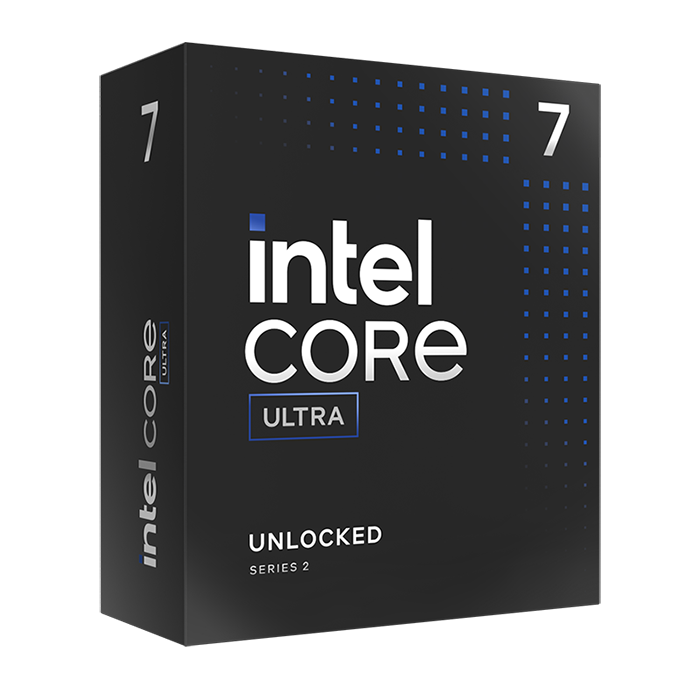
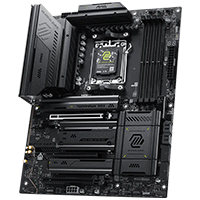
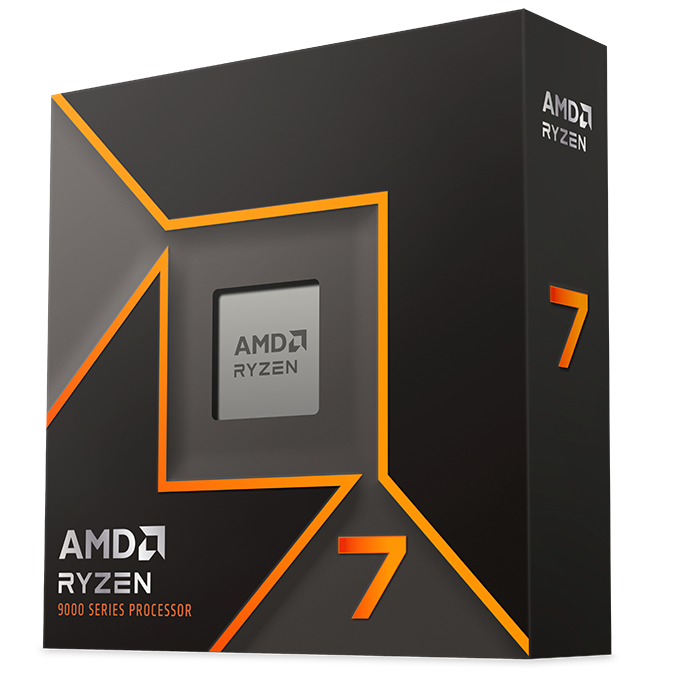
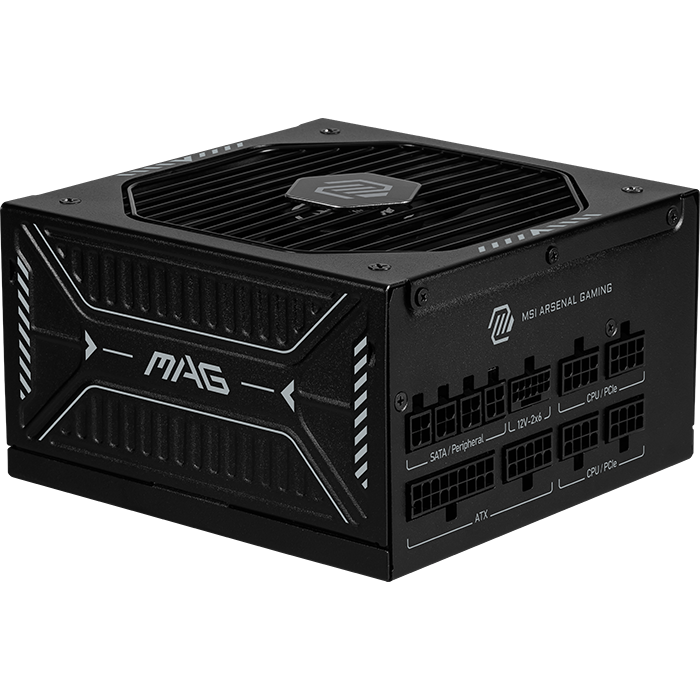
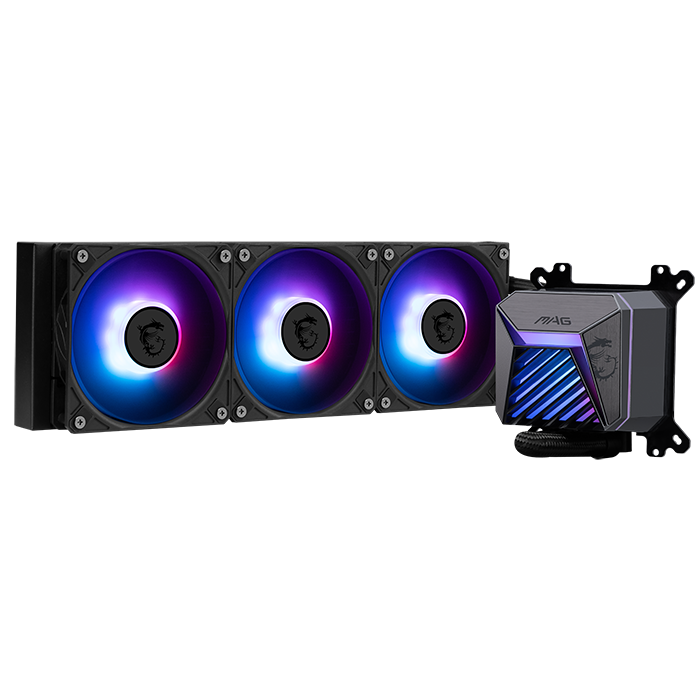
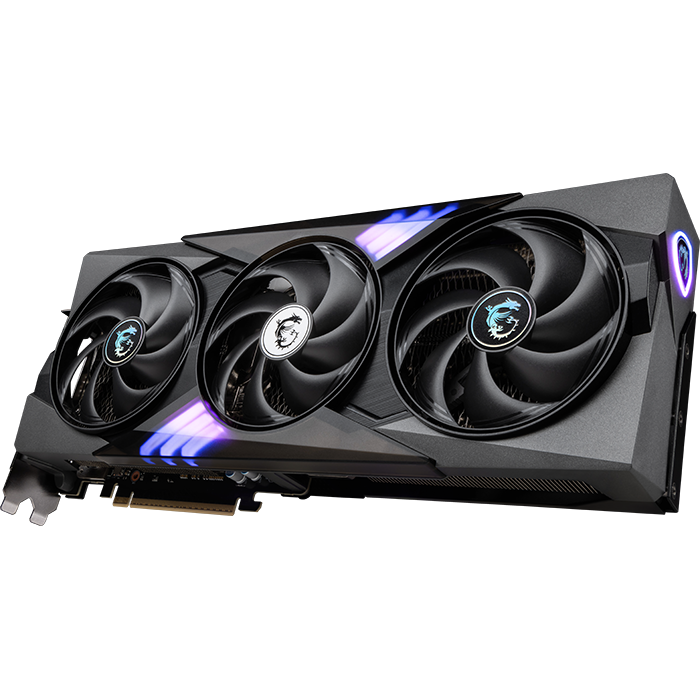
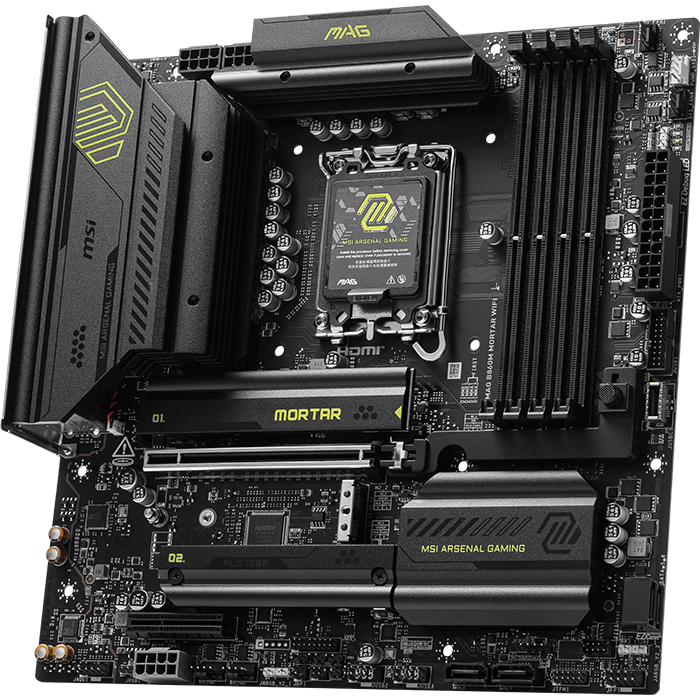
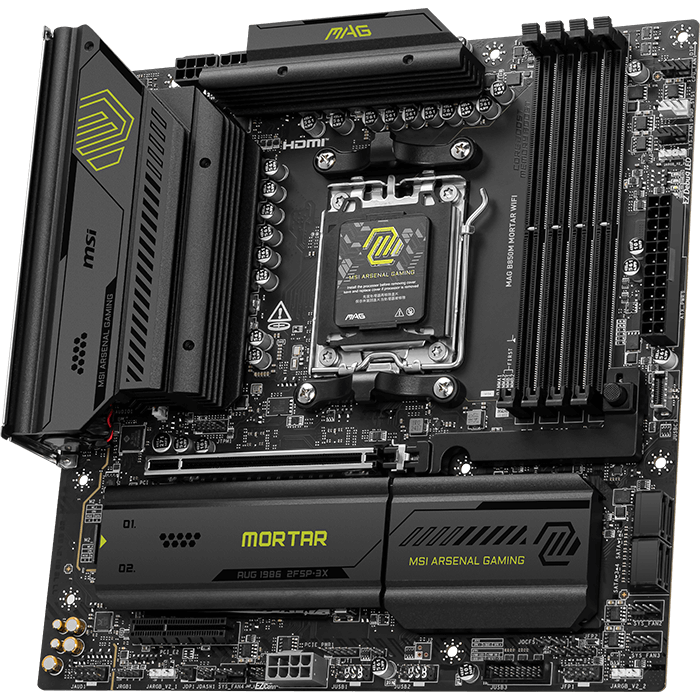
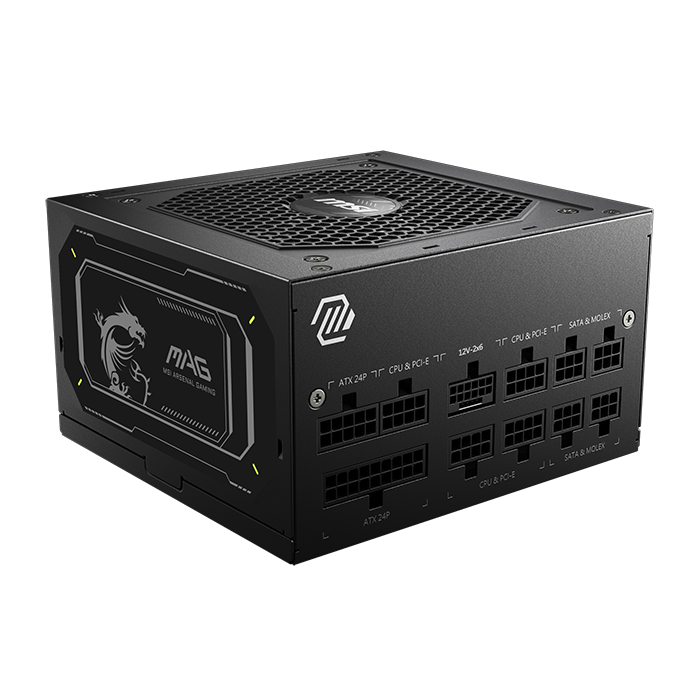
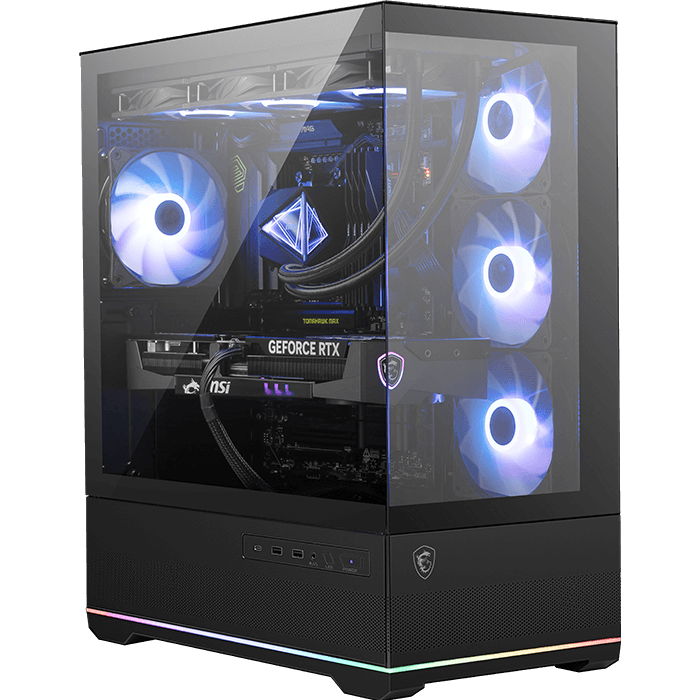
* Image(s) for reference only.
Gaming Desktop
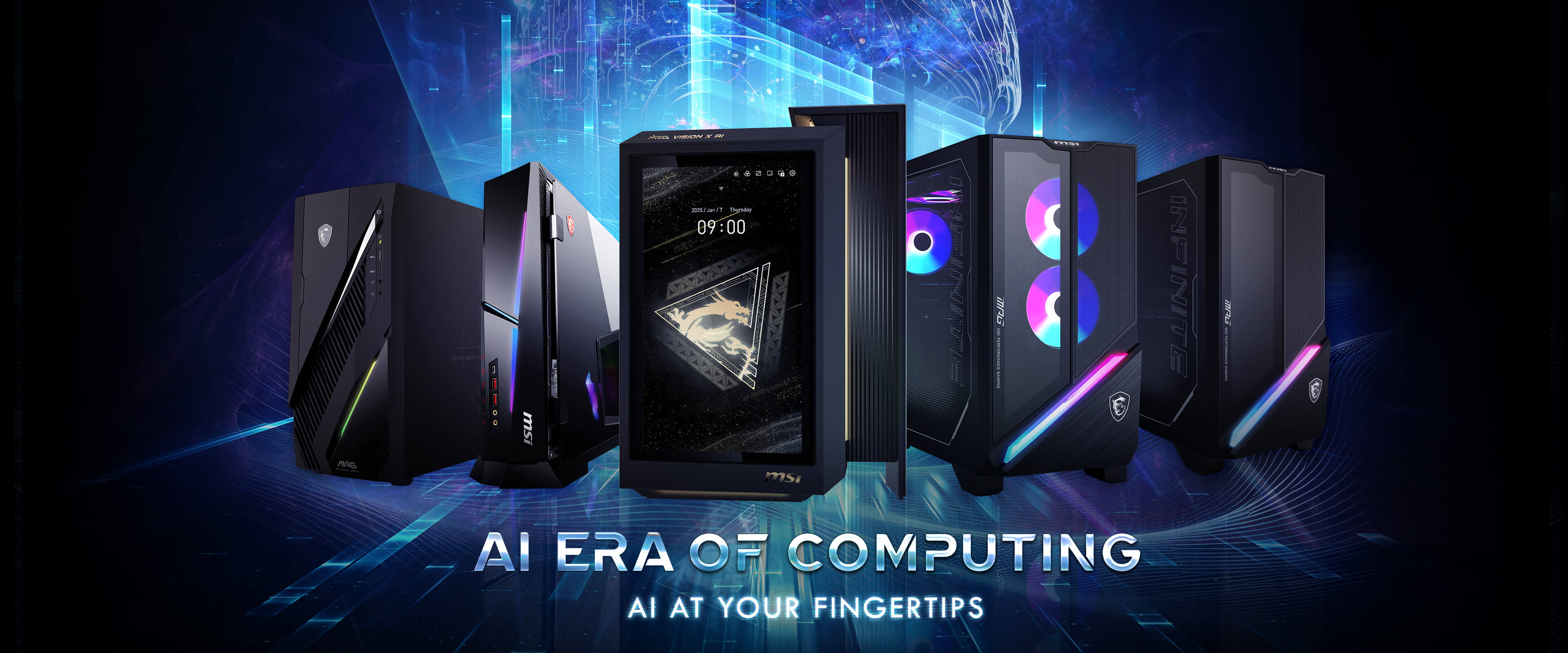
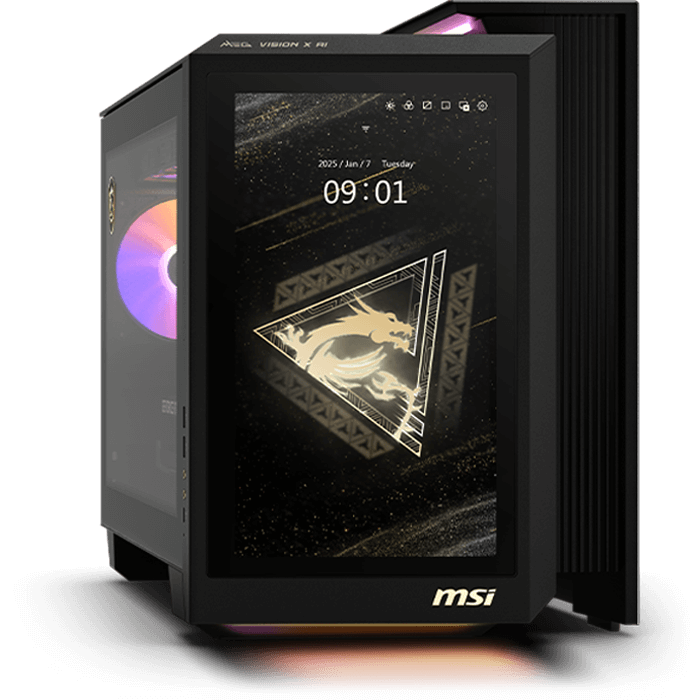
MSI Gaming Desktops usher in a new era powered by cutting-edge AI technology. Integrated AI features elevate your gameplay to unprecedented heights, delivering unparalleled intelligence and performance. Experience a revolutionary leap where artificial intelligence redefines gaming.
DigiME
FAQ
Is DigiME available in all regions?

Can I use DigiME if I’m not using MSI hardware?
What’s the benefit of logging in to DigiME?
Can MIA switch languages and voices?
How do I add new voices for MIA?
- Open Windows Settings > Time & language > Language & region
- Select your desired language and click options
- Check the box next to Text-to-speech and click Install.
- After installation, restart DigiME and log in to enjoy natural-sounding speech.
How accurate is the content generated by MIA?
What specific live streaming platforms does DigiME support?
What is the hardware priority order for AI model in DigiME?
DigiME software consists of two main components: 3D graphics rendering and AI-model inferencing.
- The virtual scene's 3D graphics for the virtual scene uses the GPU.
- For AI-model inferencing, users can pick between either the GPU or NPU. By default, the NPU (if available) will first be utilized for 100% of the computation, followed by the dedicated GPU, and lastly by integrated graphics if needed.
What is the minimum recommended hardware to run DigiME?
- OS: Windows 11 or above
- Processor: Intel Core i7 10th Gen / i5 11th Gen or above; AMD Ryzen 5 5600 / Ryzen 7 5800 or above
- Memory: 16 GB RAM
- Graphics: NVIDIA GeForce RTX 2060 or above; AMD Radeon RX 6600 or above.
- Storage: 1 GB of available space
- Webcam: Standard webcam with 720P resolution
- Microphone: Standard microphone
*Note: An INTEL based NPU paired with a GPU can enhance performance by offloading AI-related tasks, such as camera-based motion tracking. This frees up the GPU for process-intensive work, such as rendering textures and advanced graphics.
What should I do if DigiME cannot be installed successfully?
- Operating System: Ensure you are running Windows 11 or above.
- Graphics Driver: Update your NVIDIA or AMD GPU drivers to the latest version, as older drivers may not support DigiME.
- System Updates: Confirm that your Windows is fully updated to avoid missing dependencies.
- Hardware: Verify that your system meets the minimum recommended requirements above.
*Note: DigiME requires access to Google services. DigiME cannot be used in regions where Google services are unavailable.
How do I earn extra MSI Reward Points?
Note: If the points don’t appear, log out and back in. Each MSI Member can claim this reward once.
Is Voicemod function free to use?
How to Get Started with DigiME?